
 Tutorial








POS Pro - Advanced POS & Inventory Management System | POS SaaS Solution
HomeDocumentation
Installation Wizard
Go to your website address, then you'll see an installation wizard. To open the installer. Visit
yourdomain.com/install
Now the installer will show up.The First screen will be Welcome Screen
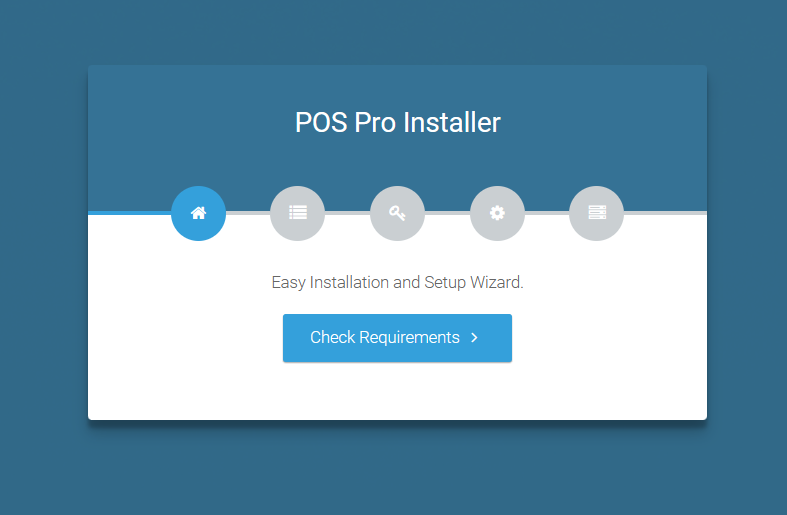
Note : If you are not able to access the website by accessing yourdomain.com/install, but you are able to access it via yourdomain.com/index.php/install, this means that you probably don't have Apache mod_rewrite installed and enabled.
Server Requirements
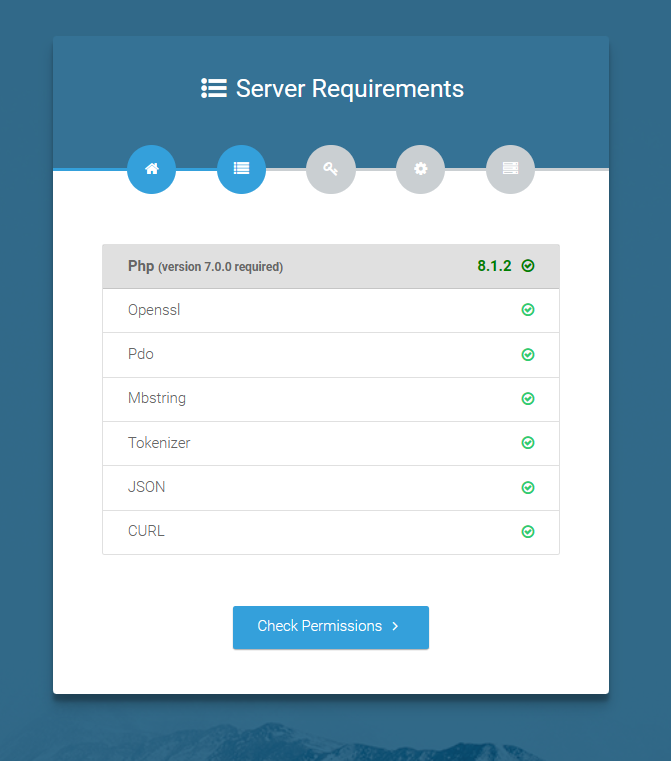
After clicking on "Check requirement" button, you will be redirected to System Requirements step during the installation wizard, System Requirements.
Directory Permissions
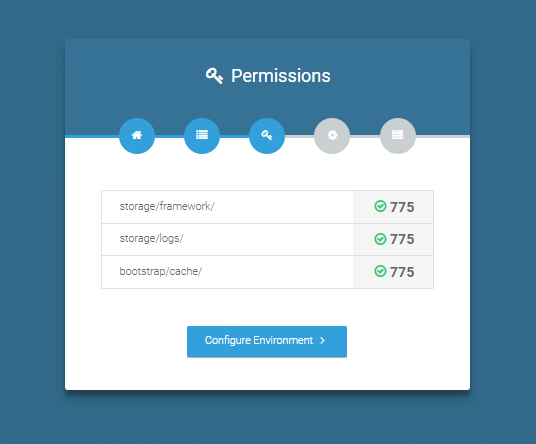
After successfully enabling and installing all required PHP extensions, next step is to set the appropriate permissions for some system folders that shows on below picture.
For giving permissions please open your terminal window. and type command sudo chmod 777 directory_name for example sudo chmod 777 app
Note : If your control panel has no terminal window, then go to public_html or the directory where you have uploaded the project. now give permission for some system folders that show on Installer. For example, we have demonstrated storage/framework directory permission in the below image.
Open required directory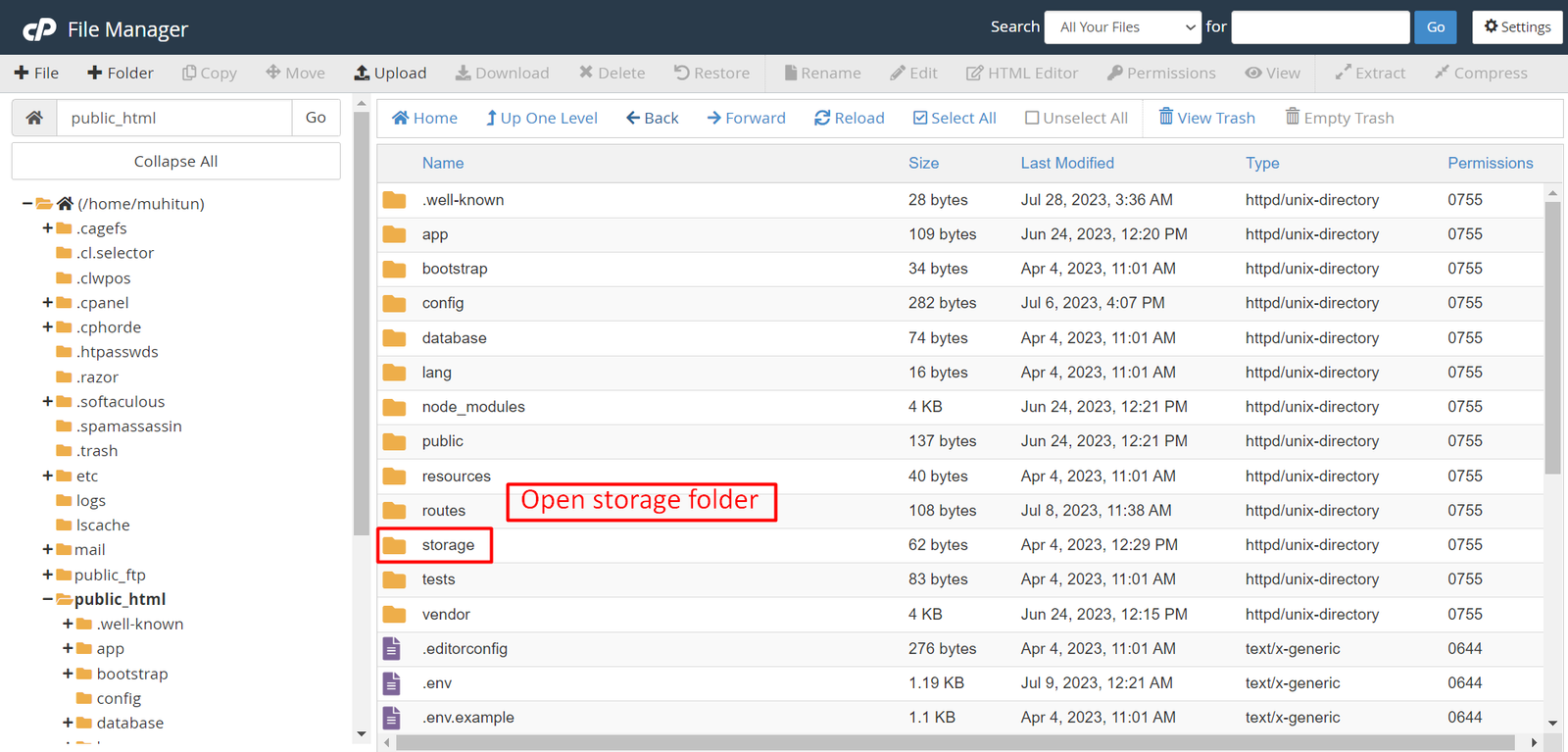 Change permissions for specific directory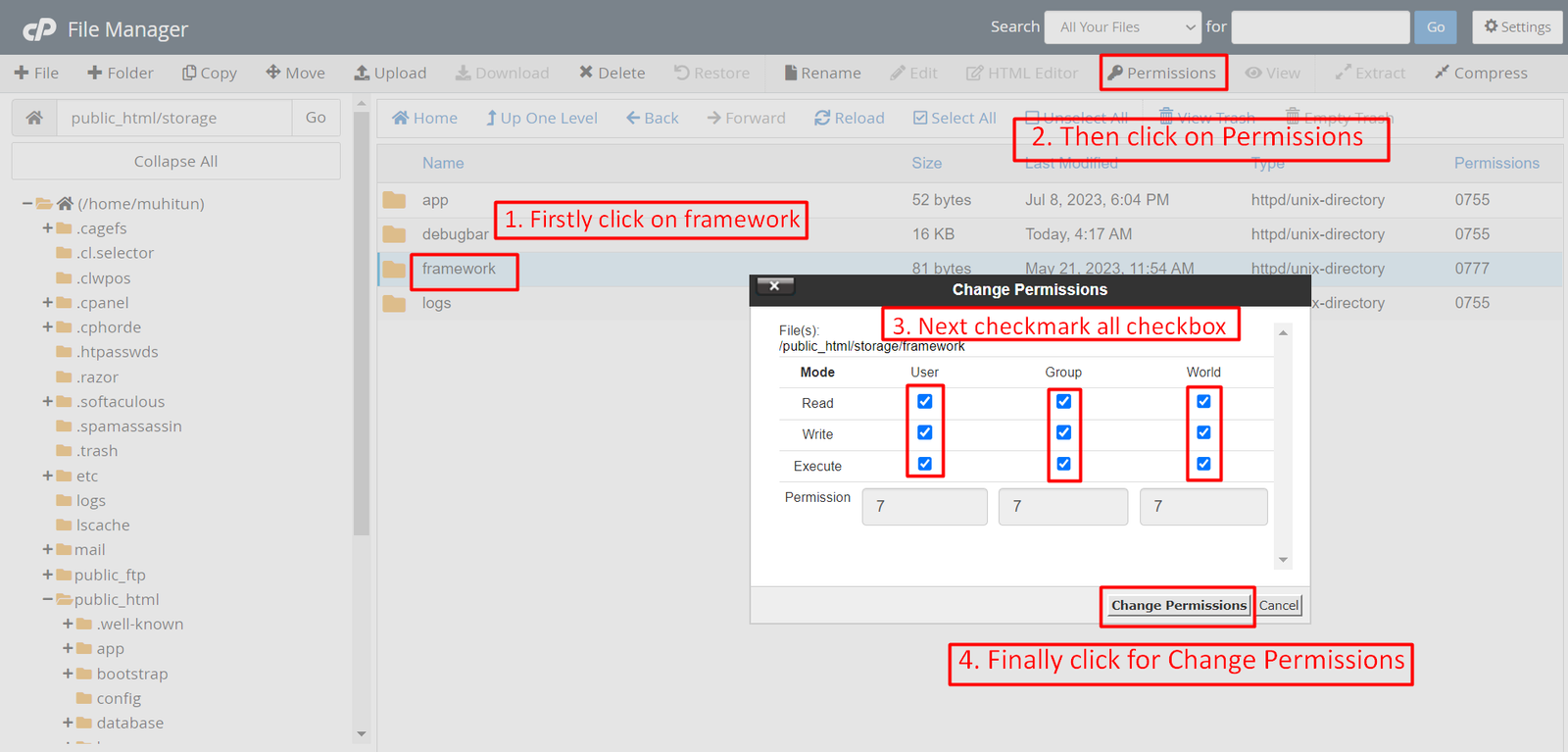
Note: You have to change the directory permissions for the storage/logs and bootstrap/cache folders as shown in the image. If these folders do not have the correct permissions, please adjust them accordingly.
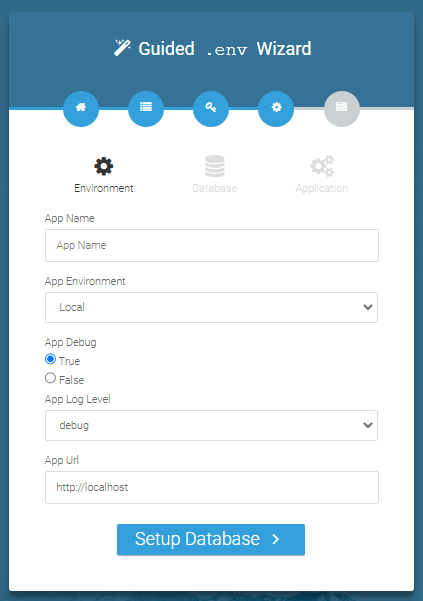
Database/Environment Setting
You have to fill in your database credentials
Exit
The last step is exit step.
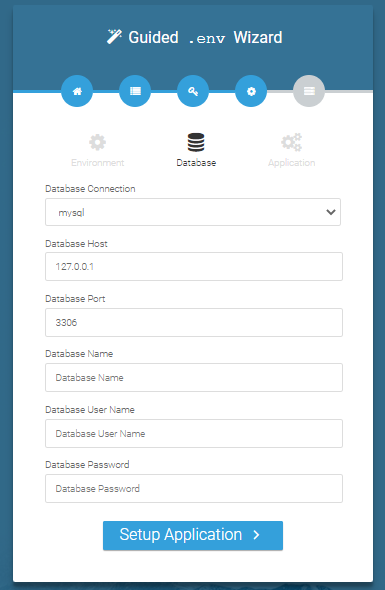
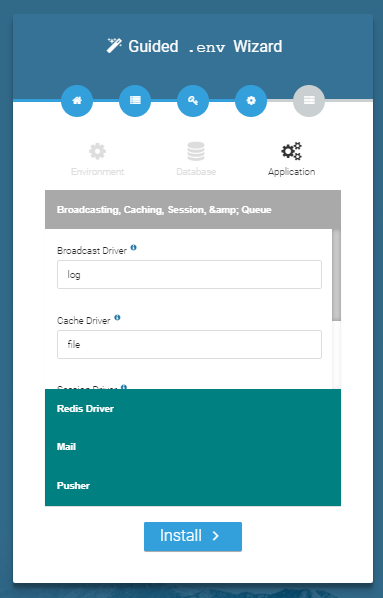
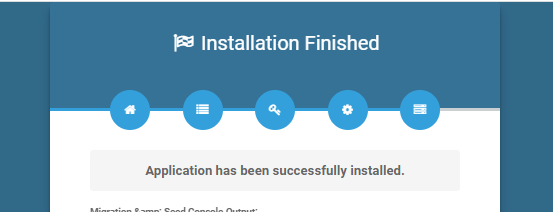
Congratulations you have successfully installed this project on your server. 😀
Articles in this section
- Getting Started
- Requirements
- Download Project from Envato
- Creating Database
- Uploading Files
- Installation Wizard
- Default Password
- Dashboard
- Advertising
- Business List
- Business Category
- Subscription Order List
- Custom Domain List
- Plan List
- Staff List
- Subscription Report
- Message List
- CMS Manage
- Roles & Permissions
- Setting
- Add ons
- Mail Configuration / SMTP Setup
Was this documentation helpful?
0 out of 0 found this helpful