













HomeDocumentation
Gmail
To create and configure an SMTP email account using Gmail, follow below steps:
Step 1: Enable 2-Step Verification on Google Account
1. Go to https://myaccount.google.com
2. Click "Security" from the left menu.
3. Under "Signing in to Google", enable 2-Step Verification.
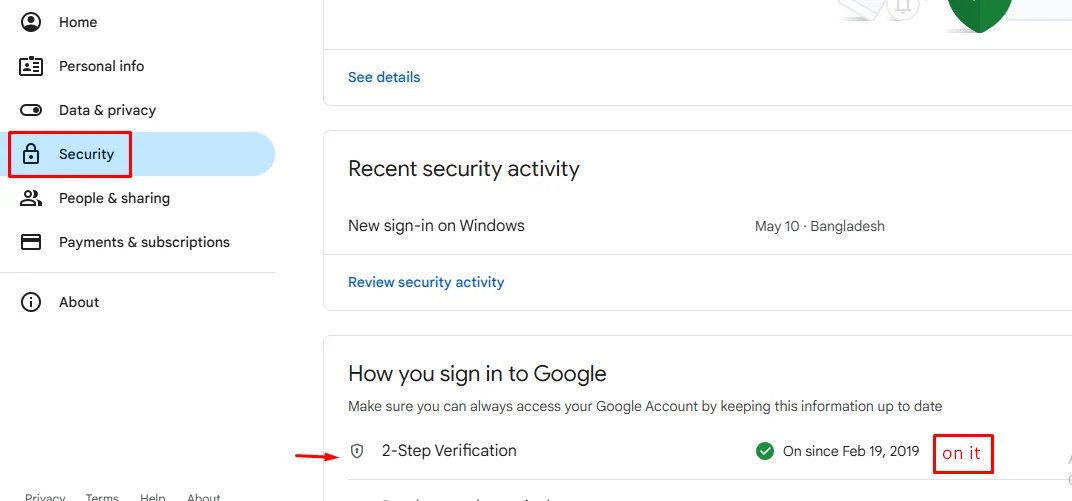
4. Complete the setup with your phone or other options.
Step 2: Create an App Password
After enabling 2-Step Verification:
1. Visit: https://myaccount.google.com/apppasswords
2. Sign in if asked.
3. Under "Select the app", choose Other (Custom name).
4. Give it a name like "SMTP App" and click Generate.
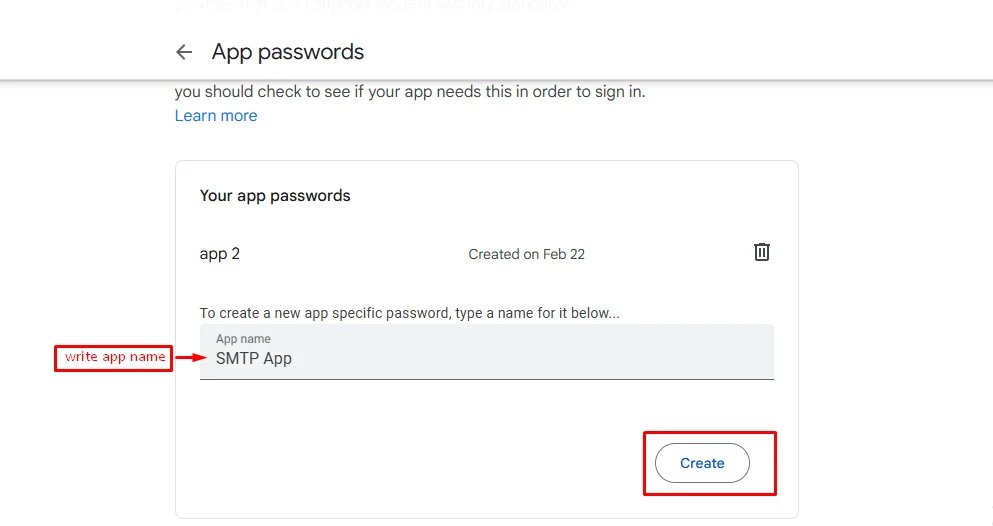
5. Google will show you a 16-character password — copy it. You’ll use this as your SMTP password
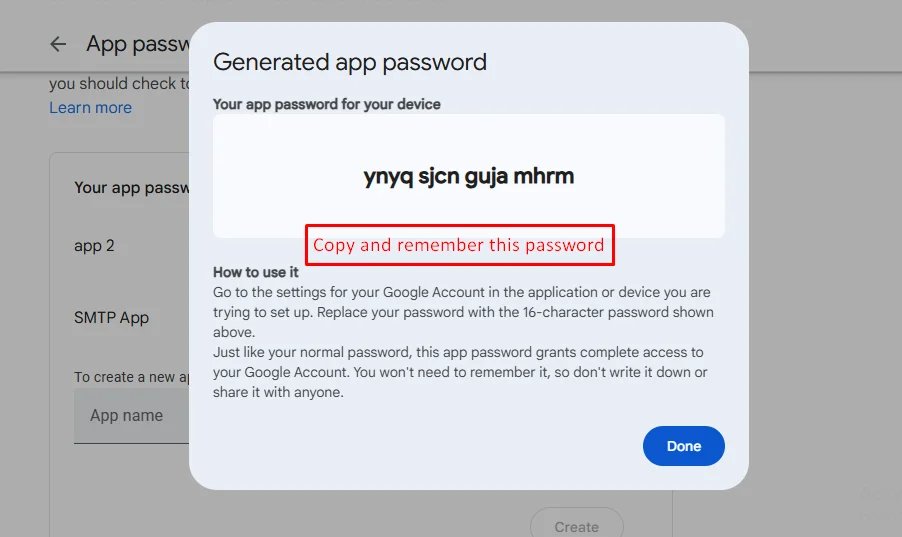
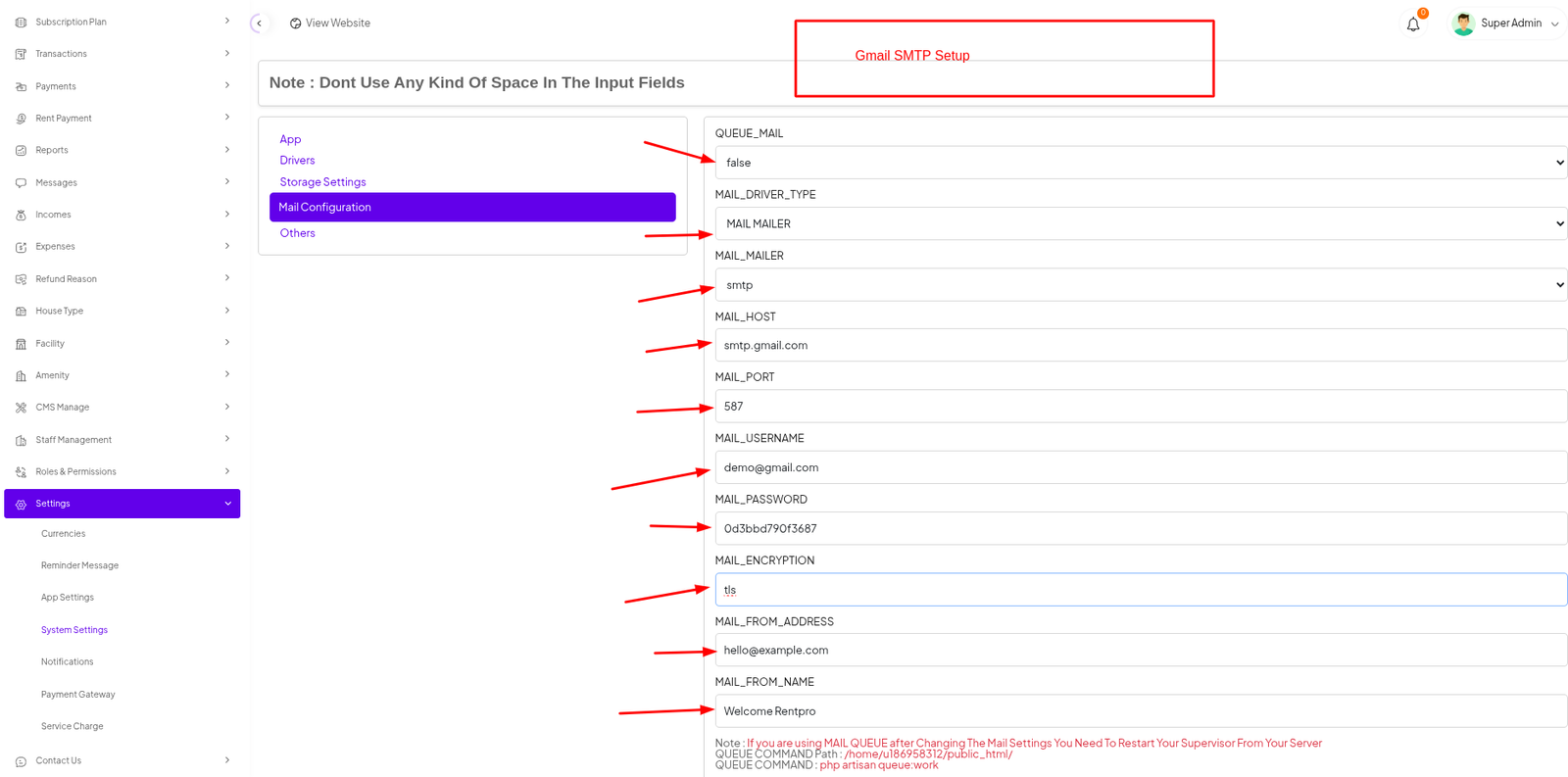
Example:
| Input | Value |
|---|---|
| QUEUE_MAIL | Select true / false, (If you select true, you need to run the following command: php artisan queue:work on server) |
| MAIL_DRIVER_TYPE | Select MAIL MAILER / MAIL DRIVER |
| MAIL_DRIVER | smtp |
| MAIL_HOST | smtp.gmail.com |
| MAIL_PORT | 587 |
| MAIL_USERNAME | your_email@gmail.com |
| MAIL_PASSWORD | your_app_password |
| MAIL_ENCRYPTION | tls |
| MAIL_FROM_ADDRESS | your_email@gmail.com |
| MAIL_FROM_NAME | Your project/app name |
Set the values to System Settings → Mail Configuration
If you want to know more details please follow their, Official documentation. Here is also a youtube video link for reference.
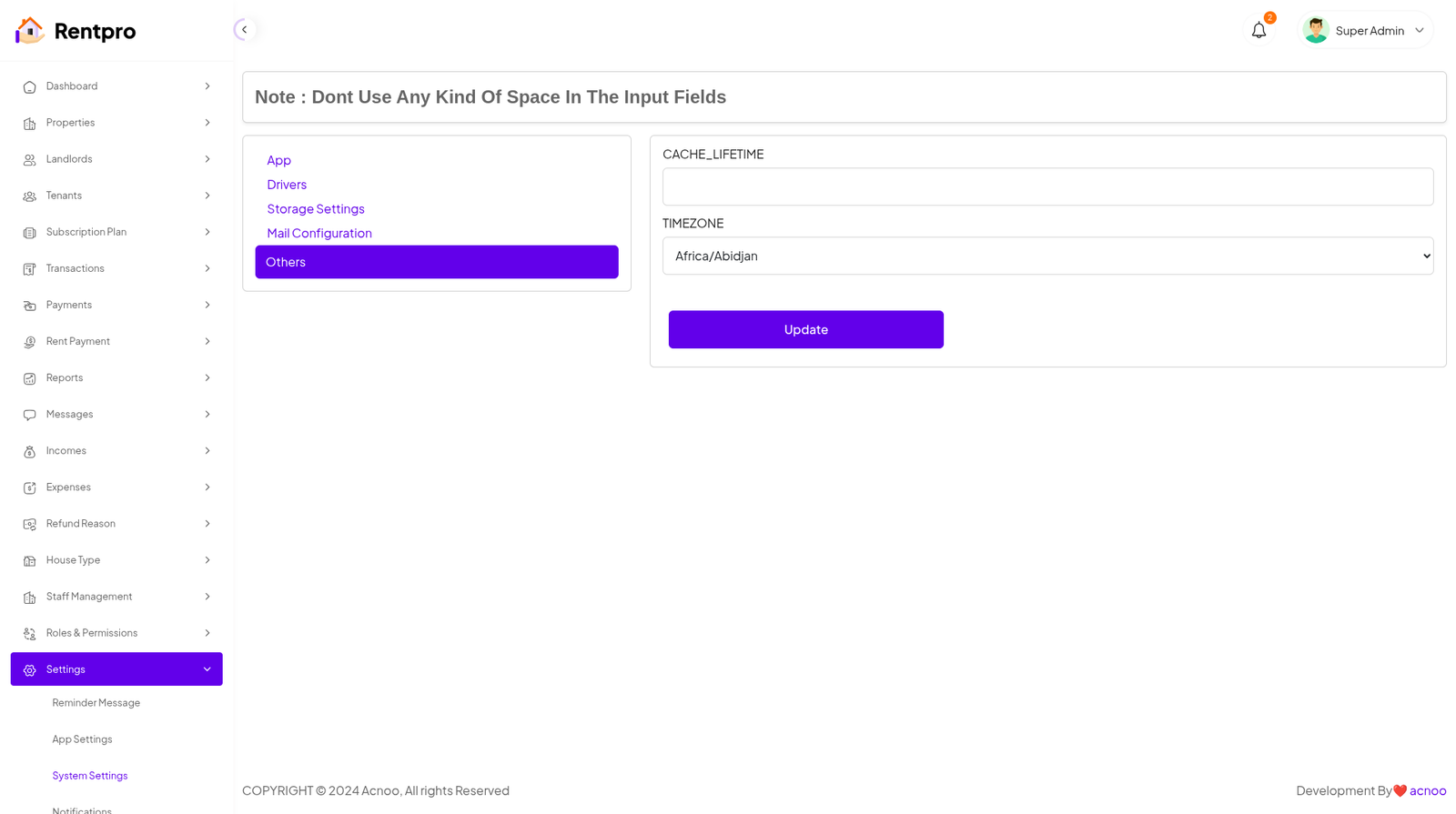
Others
Articles in this section
- Getting Started
- Requirements
- Download Project from Envato
- Creating Database
- Uploading Files
- Installation Wizard
- Default Password
- Dashboard
- Property List
- Schedule
- Landlord List
- Tenant
- Subscription List
- Plan List
- Transaction
- Withdraw Method
- Rent Payment
- Landlord Withdraw
- Contact Message
- Income List
- Expense List
- Refund Reason List
- House Type List
- Facility List
- Amenity List
- Staff List
- Roles & Permissions
- Setting
- Contuct Us
- Mail Configuration / SMTP Setup
- Hostinger Panel
- Gmail
- Change Logs
Was this documentation helpful?
0 out of 0 found this helpful